Distraction Free Email Composition with Gmail

Aside

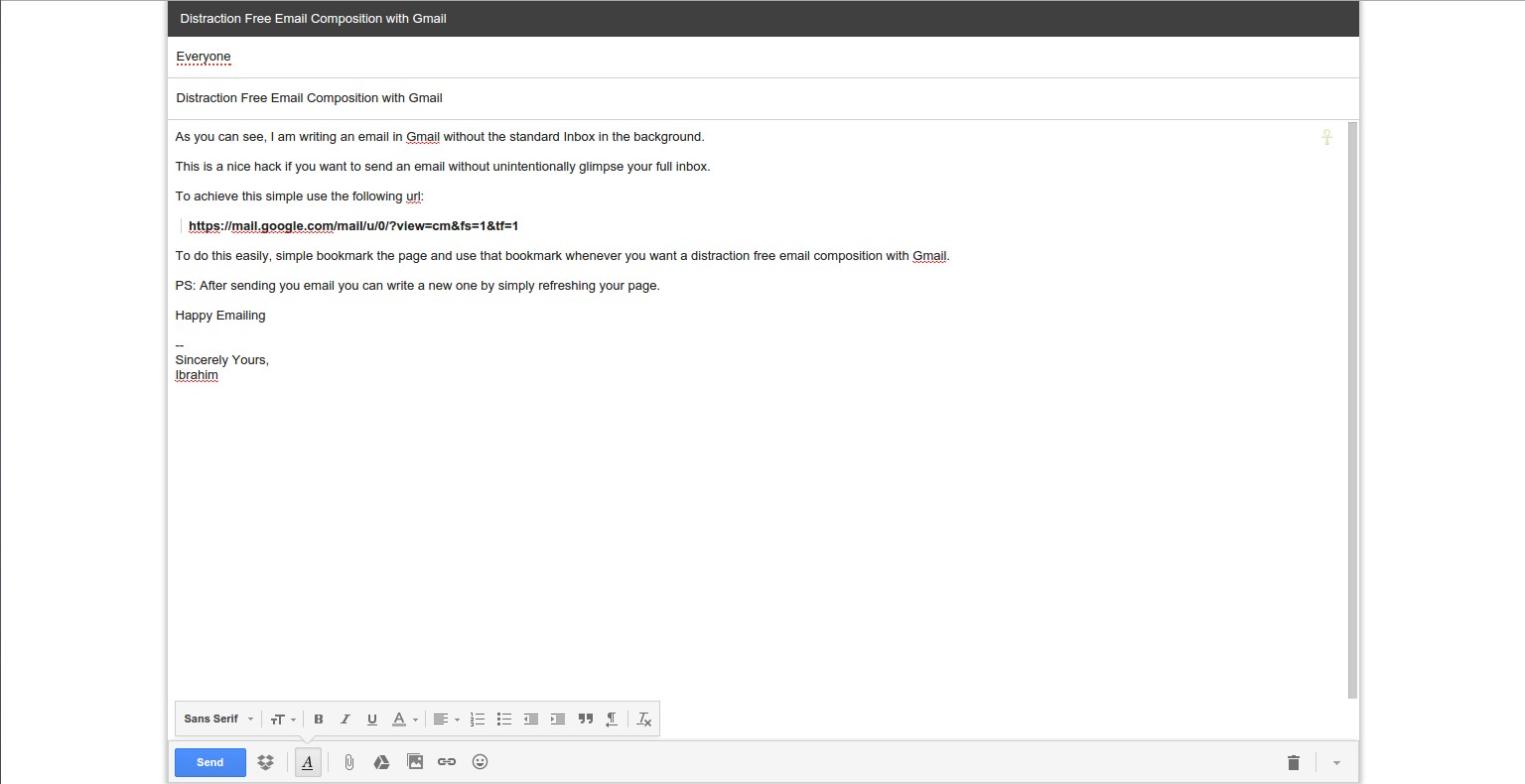
As you can see, I am writing an email in Gmail without the standard Inbox in the background. This is a nice hack if you want to send an email without unintentionally glimpse your full inbox. To achieve this simple use the following url:

​​https://mail.google.com/mail/u/0/?view=cm&fs=1&tf=1

To do this easily, simple bookmark the page and use that bookmark whenever you want a distraction free email composition with Gmail. ​​ PS: After sending you email you can write a new one by simply refreshing your page. Happy Emailing — Sincerely Yours, Ibrahim Selection_026
Tip from a reader (Marc): If you want a similar solution when replying to a email, simply pop-out the reply window then clicking the double-arrow icon in the upper right corner while pressing the shit key as shown in the images below.


An easier keyboard-based solution is Shift+r.

Linux tip: find your bash command in less than 3 seconds

Standard

Many Linux users usually need to repeat the same command over and over again. For the newbie she will often re-write the whole command. The average use might already know that there’s something called a bash history and so she would use the up and down arrows to navigate through the history. It will take a while to find the needed command.

The more advanced user would know the trick I am about to tell you to find the appropriate command in less than 3 seconds.
Continue reading

Tip: WordPress & Footnotes

Standard

To make linked footnotes [1], add the following (in text mode) just before your footnotes:

</pre>
<h4 id="footnotes">Footnotes</h4>
<pre>

Now you need to link each footnote number in the text by using the link of your post and suffixing it (after the /) with

#footnotes

To see an example hover your cursor over or click any linked number in the text and notice how the url of the post changes. It’s a manual labor but I think it’s sometimes worth it.

Footnotes

[1] Creating Footnotes in WP https://lorelle.wordpress.com/2013/02/26/creating-footnotes-in-wordpress/

Tip: WordPress & LaTeX

Standard

WordPress is known to support \LaTeX like

i\hbar\frac{\partial}{\partial t}\left|\Psi(t)\right>=H\left|\Psi(t)\right>

To embed equations using \LaTeX precede your \LaTeX code with “latex” and sandwich this with $ as follows [1][2]:

$latex your-latex-code$

To change the size precede the last $ sign with &s=2 like this:

$latex your-latex-code&s=2$

where 2 is the size which could be any number (as far as I know). For example, the Schrödinger equation above is of size 2. It was generated using:

$latex i\hbar\frac{\partial}{\partial t}\left|\Psi(t)\right>=H\left|\Psi(t)\right>&s=2$

Footnotes

[1] LaTeX in WP http://en.blog.wordpress.com/2007/02/17/math-for-the-masses/
[2] WP Support http://en.support.wordpress.com/latex/